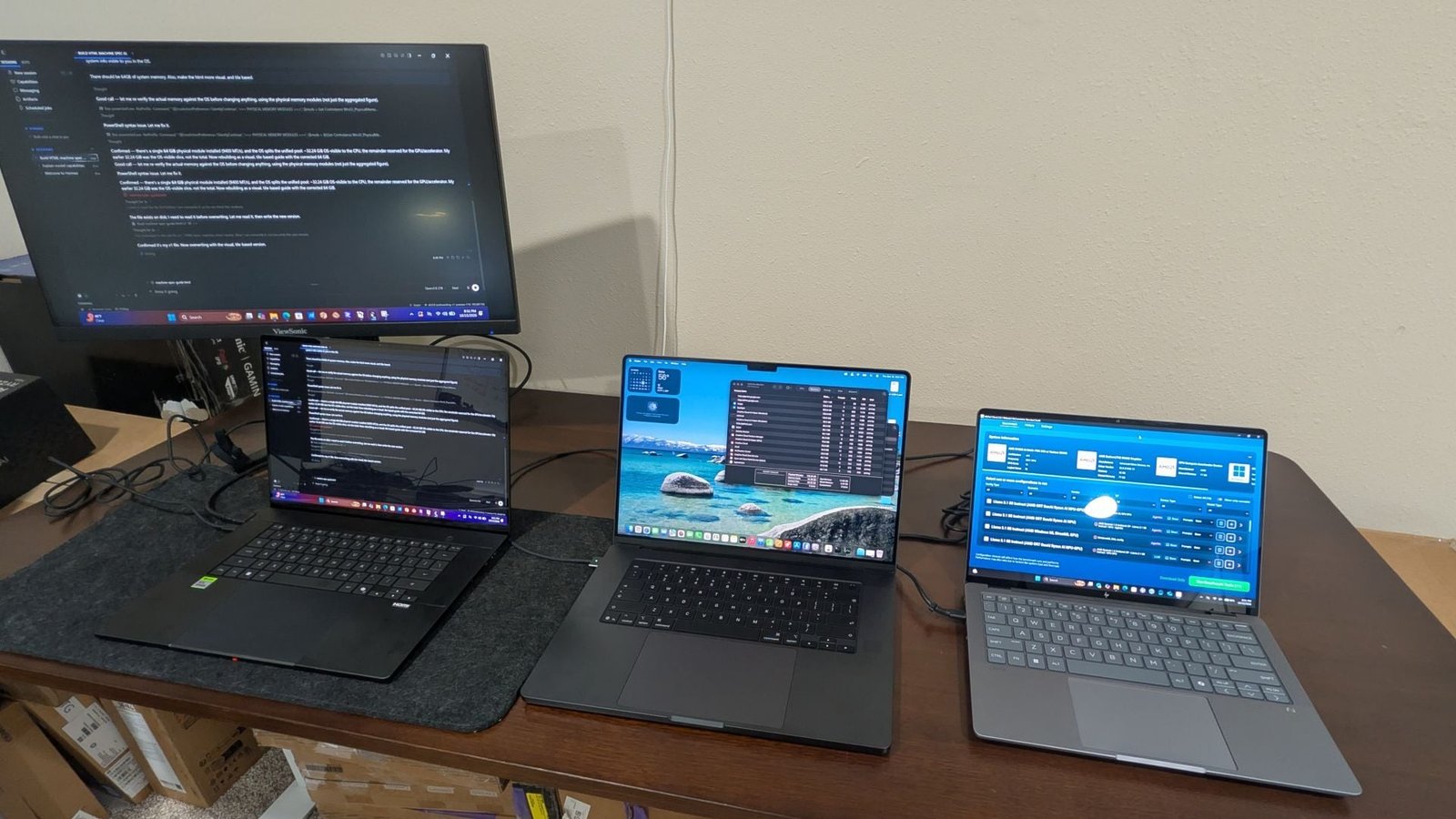
With a host of Nvidia RTX Spark laptops hitting the street today from Asus, Dell, HP, Lenovo, and others, it was inevitable that one would serve as the guinea pig for our first round of testing. Meet the RTX Spark edition of the Asus ProArt P16. (If you need a refresher on the underlying silicon and platform goals of RTX Spark before diving into the numbers, check out Nvidia RTX Spark: Everything You Need to Know Before Our First Tests.)
At PCMag, our laptop testing is defined by repeatable, scientific rigor, which means it’s rare that our testing process itself doubles as an actual experiment. But ever since Microsoft and Nvidia detailed their collaboration at Microsoft’s recent Windows hardware event to bring Nvidia’s AI-capable “Grace Blackwell” hardware to Windows, on a system built as much for AI and agentic tools as for creation and gaming, we’re in the unusual position of trying to figure out our AI testing strategy in public and in real time. The RTX Spark is an innovative platform, primarily because it brings AI capabilities to Windows laptops that, until now, haven’t been mainstream enough to warrant inclusion in our testing.
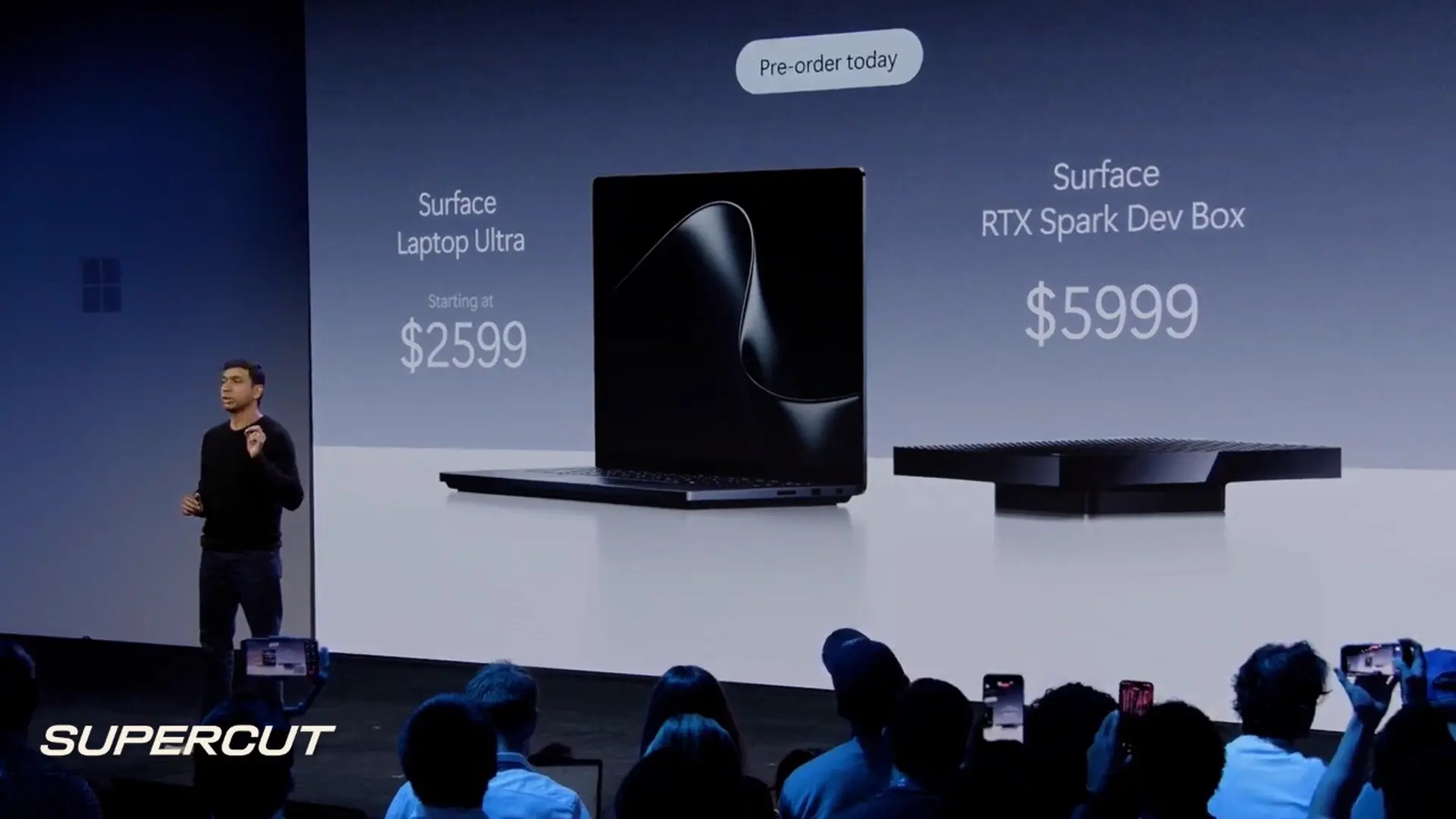

Microsoft Unveils New Surface Laptop Ultra and New AI Agents
With that in mind, this is not a full review of the Asus ProArt P16. (Note that specifically, I’m looking here at the model H7607; there are non-RTX Spark ones, too.) I’ll get to that in the coming days as I run it through our more conventional performance, gaming, and battery-life tests. (Colleagues of mine are running another RTX Spark system through some gaming trials as we speak; more on that tomorrow.)
Instead, this is an in-depth look at what makes the Asus ProArt P16 unique as an RTX Spark system, exploring the ease of use for AI and agentic tools, sharing our first round of AI testing and evaluation, and answering some of the burning questions readers have been asking about this pricey new class of AI laptops.
The Asus ProArt P16 RTX Spark: Configuration Options
At this writing, there are more planned configurations for the Asus ProArt P16 RTX Spark than are currently available.

(Credit: Brian Westover)
The entry-level system for this 16-inch AI workstation is outfitted with Nvidia’s base-model 18-core RTX Spark N1X chip, which uses the 18-core Grace CPU processor, and its Blackwell GPU with 5,120 CUDA cores. Equipped with 24GB of unified memory and 512GB of SSD storage, it starts at $2,799.99 and is sold through Best Buy. Though this is the entry-level model, it comes equipped with a 16-inch 4K OLED touch screen with 1,600-nit HDR peak brightness.
Check Out the Base-Model Asus ProArt P16 With RTX Spark…

A second model available through Best Buy retains that 16-inch 4K OLED display but bumps up the memory to 32GB of unified LPDDR5X, with 1TB of SSD storage, for $3,399.99.
For more options, you’ll need to configure your system on the Asus retail website, which is where I see our review unit. Our test model has the 20-core Nvidia Grace CPU and 6,144-CUDA-core Blackwell GPU, with a 16-inch 3K OLED display. Our system is outfitted with 64GB of unified memory and a 1TB SSD, and is available now for $4,399.99.
The top-tier model currently offered by Asus is a 16-inch system with a 4K OLED touch screen, 128GB of LPDDR5X memory, 2TB of SSD storage, and the 20-core Grace CPU and 6,144-core Blackwell GPU. Armed with the stepped-up RTX Spark chip and full memory allotment, it’s the most capable version of the 16-inch RTX Spark from Asus, and it sells for $6,999.99.
Hands-On With the Asus ProArt P16 RTX Spark
Let’s start with unboxing and handling this beast. The first thing to note is how slim and light this system is. Compared with the current Asus ProArt P16 (2026) creator workstation, a creative desktop replacement outfitted with AMD Ryzen AI 9 processing hardware and an Nvidia GeForce RTX 5090 GPU, the RTX Spark model is a hair thinner and 0.05 inch slimmer, despite having a very similar footprint. It is also a little more than 3 ounces lighter, despite having a similar 16-inch OLED display.

(Credit: Brian Westover)
Asus claims that it is 9% lighter, and I can attest to the fact that for a 16-inch desktop replacement, this does feel reasonably portable. It’s obviously not as lightweight as what you would get in something like the 16-inch LG Gram Pro 2-in-1 16 (2025), but Asus isn’t going for lightweight records here, and it’s using standard aluminum chassis construction.
Our system came with a 16-inch 3K OLED touch screen. Where the high-end 4K model offers higher HDR peak brightness, this step-down option still looks great, with vibrant color, crisp contrast, and a rated 500 nits of peak brightness, which is still fairly impressive for an OLED screen.

(Credit: Brian Westover)
Everything else about the system feels solid and comfortable, from the backlit Chiclet-style keyboard to the generous haptic touchpad. The touchpad is the largest Asus has offered on a desktop replacement, and it is ever so slightly larger than the touchpad on the Apple MacBook Pro 16-Inch (the 2026 M5 Max version). But it’s different from the touchpad seen on this year’s non-Spark Asus ProArt P16, which featured a circular DialPad, a touch wheel that offers intuitive access to artist tools and easy scrubbing back and forth through video footage.

(Credit: Brian Westover)
Instead, Asus bundles the Asus ProArt Mouse MD301 ($99) with the laptop, an ergonomic wireless mouse that boasts both Bluetooth and 2.4GHz connectivity for up to three devices, a precise 8,000dpi sensor, and a side/thumb scroll wheel in addition to the more common middle scroll wheel. A USB Type-C quick-charge feature gives you several hours of battery life after just a minute plugged in, and 180 days of continuous use on a full charge. It’s also got swappable switches under the mouse buttons and various programmable features, but I haven’t had time to explore these to any real degree yet.

(Credit: Brian Westover)
The laptop’s port selection is generous, with a pair of USB Type-C ports on the left (40Gbps, supporting DisplayPort and power delivery). Also on this side are a full-size HDMI output for connecting an external monitor, and a 3.5mm audio jack. On the right-hand side of the machine are a third USB-C port (also 40Gbps, with DisplayPort and power), a 10Gbps USB Type-A port, and a slot for full-size SD cards. For wireless networking, it’s equipped with a triple-band 2×2 Wi-Fi 7 adapter, along with Bluetooth 5.4 for connecting audio and peripherals.

(Credit: Brian Westover)
The laptop also comes with a carrying sleeve. The Asus Pro RTX Spark is available in two color finishes: Nano black and Neo white. Nano black features a fingerprint- and stain-resistant coating, while the silver-white Neo is treated with a special sandblasting process to give it a matte finish. The anti-fingerprint black finish sounds great in theory, but in my handling of the laptop, it didn’t keep the palmrest completely fingerprint-free. Keeping a soft wiping cloth took care of that, though.
The Asus ProArt P16: General Impressions
From unboxing the laptop to setting up and using my first agent, I’ve been deeply impressed with the Asus ProArt. The high-end hardware makes standard computing tasks—browsing, loading large files, multitasking across apps—very smooth. I haven’t been able to run it through our standard set of productivity tests yet (I focused on the unique AI capabilities for this write-up), but I have every confidence that when I do, it will stand alongside top performers in gaming and workstations.
Gaming performance, for example, seems to be pretty solid at modest 1080p and 1200p resolutions, producing very playable frame rates in games like Cyberpunk 2077. With a CUDA-core count that matches a desktop GeForce RTX 5070, and plenty of memory in the shared memory pool available to the SoC, it functions much like a lower-spec gaming or workstation laptop in terms of pure graphics power. (More about gaming graphics tomorrow in our upcoming RTX Spark gaming test story.) I’ll hold off from speculating further, since our team will be putting a similar Spark through our full test suite soon enough.
The bigger question is AI use. And there are two main factors worth sharing on that front. First, even with the smaller 64GB memory of our review unit, you can absolutely load and run a number of local models on the machine and expect decent performance.

Downloading local AI models through LMStudio (Credit: Brian Westover)
Models like Qwen 3.5 9b, Nemotron 3 Nano 4b, and Gemma 4 12B were all easy to download and install, using a front end like LMStudio. The process is fairly smooth, thanks to a number of Nvidia Playbooks that offer step-by-step guides for finding models and installing them into whatever model downloader and manager you choose. It offers a handy graphical interface for quickly running new models as simple chatbots, and thanks to native support and CUDA optimization, it doesn’t require a lot of troubleshooting.
The one caveat here is that our model had only 64GB of unified memory, rather than the 128GB required to support larger models. That means that 120B to 125B+ models like DeepSeek-V3 and Qwen 3.8 Flash Next (125B) are too large to use, while models in the 10GB to 40GB range run quite nicely.
I’m looking forward to testing these different models in depth for different use cases, but for now, I’ve only had time to load them and run basic tasks, such as chat, content summarization, and basic image generation using Llama 3.2 Vision and Flux 2 Klein 4B.

(Credit: Brian Westover)
My first impression: When running any of these local models, you will hear some fan noise, but it’s a lot quieter than I expected. After doing similar testing on developer desktops, such as the Nvidia DGX Spark mini PC and the AMD Ryzen AI Halo, I expected loud, whining fans and a system that was hot to the touch. While the ProArt definitely got warm, and you can hear the fans kick in when multitasking in conjunction with a running AI model, it’s not as loud as I expected.
AI Agents: Putting Your AI Machine to Work for You
Running a local chatbot or generating some photos is just scratching the surface of the RTX Spark’s capabilities. Microsoft and Nvidia have put in a lot of work to make sure that the agent-onboarding experience is a lot easier than past implementations, which required navigating GitHub repos and grabbing models from Hugging Face, half-guessing at which models were a good fit for your system.
Now, an agent-installer app, Get Started, is available on the RTX Spark, and it takes a lot of the headache and guesswork out of setting up an agent. It made it very easy to set up Hermes, an agent framework that can be paired with local or cloud AI models to handle tasks for you on your machine. It offers the front-end interface for loading a model, chatting with it and assigning tasks, and even building dashboards and tools with AI-written code. OpenClaw and Perplexity Personal Computer were two additional agent tools I could have chosen, but I haven’t had time to experiment with either one extensively yet. (I’ve only had the machine for a few days.)
When I set up my Hermes, it first connected to an online model provided by Nous (the company behind Hermes), but that model was sort of like training wheels, as it walked me through downloading Qwen 3.5-9B and setting it up to run with that model as the engine for my offline agent.

HTML coding with a local AI Model (Credit: Brian Westover)
Token generation wasn’t as lightning-fast as you’d get with an online paid tool like OpenAI’s ChatGPT or Google Gemini, which can blurt out several hundred words at a clip. Instead, you’ll get slower pre-processing wait times and token-by-token output, but at a rate closer to a speedy typist, writing a few tokens per second. And you’ll be able to watch as the model thinks through a question or task, piecing together a workflow before it executes a single step.
I started off by asking it to put together a spec sheet for the system I was reviewing, and it immediately complied, building an HTML infographic that listed CPU and GPU names, core counts, memory, and storage. Along the way, it asked my permission to run a PowerShell script to collect the data. But, crucially, I didn’t have to do anything but press a “Yes” button to run that script; I never had to open a PowerShell terminal, paste or type a command, or parse the inscrutable syntax of .NET objects.

Whipping up a spec viewer with Hermes Agent (Credit: Brian Westover)
Due to how the unified memory was allocated between CPU and GPU, though, it initially reported 32GB on my 64GB machine. A quick correction led the agent to revisit it, find the mistake, and fix it by checking the installed hardware rather than the reported number in the OS. And, since it originally wanted to use a list style for reporting specs, I also asked it for something more visual and tile-based.

Organizing folders with Hermes on RTX Spark (Credit: Brian Westover)
Another task I had it tackle was providing a list of the files on my desktop and suggestions for cleanup. I initially dumped a lot of the reviewer’s guides, software and packages, and the results of our AI testing right on the desktop, for a total of 18 top-level folders, 329 nested folders, and 3,578 files across them. My agent not only put together a file tree that listed the items and showed me where each was located, but it also went on to point out that the two versions of MLPerf Client I ran on the system included roughly 90GB of duplicate files, since the two versions use the same models and log files.
It offered several suggested options for removing duplicate files and reorganizing the files across drives, but it didn’t do anything until I gave it the word.
Classifying AI PCs, and How We’ll Test Them
Our AI testing is still in its early days, but we’ve designed a new suite to address the diverse hardware and use cases across the growing number of devices broadly, and amorphously, termed “AI PCs.” While the AI PC was originally simply a laptop with some AI capability added via a dedicated neural processing unit, or NPU, we’ve seen more powerful systems used to run local models and agents, as well as developer systems built to run more powerful models right on your desktop.
What this means for testing is that we have to tailor our tests to very different hardware profiles and AI capabilities. To accommodate these different systems, we divided AI PCs into three primary categories of laptops and desktops.
First, we have everyday AI PCs (we’ll call them “Class 1”), which rely on an NPU and standard RAM allocations to run small language models and apply machine learning to smaller tasks, such as summarizing text, providing live translation and captions, and enhancing your webcam image.
Second, we have gaming laptops and mobile workstations (“Class 2”), which repurpose the parallel processing capability and dedicated VRAM of a discrete GPU to run medium-size LLMs and agents. When AI first went mainstream, these systems were at the cutting edge for running local open-source models, but they were limited by the graphics card’s local memory.
But in the last year or so, we’ve seen a “Class 3” emerge, built with AI in mind. The first of these systems was built specifically for AI developers, leveraging a super SoC design that puts the CPU and GPU onto the same piece of silicon, and then pairs that with a unified memory architecture, which allows the CPU, NPU, and GPU to access the same pool of high-bandwidth memory. Putting all the components closer together reduces latency, and the shared memory lets these systems load larger workloads—such as a large language model and a generous context window.

(Credit: Brian Westover)
The Asus ProArt P16 (H7607) is an RTX Spark system, meaning it uses that same sort of super-SoC architecture. And in the top configurations, with the largest memory pool (128GB) RTX Spark systems can match those developer desktops and run some of the largest local models. But in the interest of affordability and customer choice, RTX Spark systems are also offered with smaller memory options, meaning that the model line straddles the line between Class 2 and 3. They’re powerful enough to run local models and agents, but not every configuration can load the larger models and AI workloads that 128GB of memory can handle.
For our purposes, that means that we’re limited to running our Class 1 and 2 tests on our Asus ProArt review unit, even though some RTX Spark machines can run the more demanding tests we would use on Class 3 systems.
However, we also have two Class 3 laptops to compare the RTX Spark against: the Apple MacBook Pro 16-inch (2026, M5 Max), and the HP ZBook Ultra G1a 14, which both use the sort of super-SoC architecture that developer desktops do, and are equipped with 128GB of memory.
Powered by the M5 Max and AMD Ryzen AI Max+ Pro 395, respectively, these systems are among the first capable of running real local AI, making them perfect comparisons for the RTX Spark, which uses the same general SoC design. It also shows the diversity of hardware and software at play in this new AI world: The Apple M-series chips are based on Arm technology and run macOS; the AMD silicon powering the HP laptop uses both x86 and x64 running Windows; and the Asus ProArt we’re testing uses Nvidia’s Arm-based Grace Blackwell, has a different instruction set, and requires emulation software to run the apps that work natively on x86. So testing AI requires handling all of these different hardware and software specifics.
Confused yet? Don’t worry, it gets more complicated! The other big wrinkle in measuring AI performance is that individual models rely on different runtime environments, essentially a middleman that takes the AI’s math (all AI models are just math, no matter how sophisticated) and optimizes it for the specific hardware it’s running on. Think of it as a highly abstracted gearbox, matching the workload and data flow to the different processor hardware. Each processor brand and each OS has a slightly different runtime, sometimes more than one.

(Credit: Brian Westover)
Firing Up RTX Spark: First AI Testing
In the lead-up to the RTX Spark launch, we’ve done our darndest to develop a robust benchmarking suite for the different types of AI PCs on the market. We’ve experimented with off-the-shelf benchmarking tools and enterprise-grade server benchmarks, and we’ve even used hands-on experience and timed tasks to try to evaluate the more nuanced aspects of local models and agents.
But the AI space changes rapidly—more rapidly by the day, it seems. So for now, we’ve settled on three primary tests that match the three AI PC categories, or “classes,” I described above. We have our Class 1 tests, which use basic text prompts well-suited to NPU-based systems and are used to test workloads that would run on mainstream PCs. We test this level of capability with MLPerf Client 1.6.1 by running it through a series of standard chatbot interactions, code analysis, and short summarization tasks. As it runs through those prompts, the test measures the Time to First Token (TTFT), which measures the speed of the first response. (That’s sometimes called “Prompt Prefill Latency.”) Higher latency or longer time to first token means you’re waiting around longer for the AI to respond.
The other metric is the rate of text generation after it’s started, measured in Tokens Per Second (TPS). This speaks to the speed and throughput of an AI model as it continues through its full response. If TTFT measures how quickly an AI gets started, TPS measures how quickly it actually speaks. In AI testing, this quantifies the Decode Phase, the sequential process where the model predicts and outputs text one token at a time.
As noted earlier, runtime support is a moving target. For our purposes, we’ve tried to stick to runtimes with the broadest compatibility, but not every model works with every runtime. So our test results have some holes, as one test runs smoothly on one device and not on another.
MLPerf Client 1.6.1 Testing
For Class 1 testing, we use Llama 3.1 8B Instruct, a basic model that’s the right size and complexity to run on almost anything. A small, dense model with a modern transformer architecture, it’s lightweight enough for Class 1 systems, but can handle simple tasks like text summarization.
In our most basic tests, running everyday workloads suited to simple NPU-based systems, the Asus ProArt and the Apple MacBook Pro both deliver the first token in less than a second, with the MacBook Pro having a slight edge.
That edge also shows up as the models continue to generate responses, with the Asus ProArt generating 50 tokens per second to the Apple MacBook’s 105. But these are just basic text prompts and mildly demanding tasks. What happens when we step up to the more powerful reasoning of a more capable model?
For more advanced reasoning tasks running on Class 2 systems, we switch models. Phi 4 Reasoning 14B is a larger model that can handle longer, text-heavy prompts of between 4,000 and 8,000 tokens (roughly 3,000 to 6,000 words). That’s more in line with tasks that use multipage documents, code repositories, or scientific datasets.
Here, we see that more intensive reasoning demands translate into longer wait times, with both the Asus ProArt and the Apple MacBook Pro taking longer to get that first token out to start a response. The MacBook still leads on speed, but both are well under a second.
Sustained text generation is another story, as the Asus RTX Spark churns out 28 tokens per second, getting left behind by the MacBook Pro’s 58 TPS.
While this is not a large number of data points (and the HP ZBook Ultra G1a 14 wouldn’t yield reliable results in these initial tests), it seems clear that both systems offer excellent response times and that workload complexity directly impacts performance. Some of the Asus ProArt’s lower scores might be due to the smaller memory capacity serving as a bottleneck, but software optimization and emulation also play a role, and MLPerf Client 1.6.1 isn’t optimized for RTX Spark systems. We chose it because it’s a proven selection of tests that has been validated across different hardware and software platforms. But it’s a few months old (released in April 2026), and in the world of AI, that’s verging on old age.
MLPerf Client 2.0.1 Testing
And RTX Spark highlights this problem by presenting a new platform that hasn’t been validated on 1.6.1, and isn’t likely to be. MLPerf Client has a newer 2.0 release that expands the benchmark to include testing agentic tools and image generation (which we’ll likely adopt, as these use cases better reflect real-world performance). But, more important, the new version is the one Nvidia recommends for testing RTX Spark systems, in part because it offers an updated Arm64 version of the test.
So we ran that, too, across all three of our AI laptops. I haven’t had time to dig into the details of the new agentic and image-generation tests, so we’ll present those numbers later, as I get to additional testing. For now, we’re sticking to the text and reasoning workloads we used above.
The new version of MLPerf apparently got along better with the HP ZBook Ultra G1a 14, so we have a third set of results to compare in our Llama 3.1 8B Instruct test results.
This time around, the Asus ProArt and Apple MacBook Pro results are identical to the 1.6.1 test run, which makes sense since it’s the same test, using the same model. But we were surprised to see that both systems outperformed the HP ZBook Ultra and its AMD Ryzen hardware, which took more than 1.5 seconds to produce the first token.
The token-per-second scores aren’t exactly the same as on the 1.6.1 test run, but they’re very close, with the MacBook Pro again producing twice as many tokens per second as the Asus ProArt. However, the HP ZBook ranks third, generating just 36 tokens per second.
In handling more advanced queries with the Phi 4 Reasoning 14B model, both systems again slowed noticeably under the more demanding workload. The HP didn’t seem to be compatible with the model, so we’re back to comparing just the Asus and Apple laptops. The Apple MacBook Pro maintains its comfortable lead and holds onto it in continuous token generation, roughly doubling the TPS of the Asus ProArt.
Again, with just these data points, it’s a bit difficult to tell whether we’re seeing the result of a smaller memory pool, or additional differences in processing power (likely both), and software optimization surely plays a role, too. With additional testing, we can look for gains and losses as we try different runtimes for the RTX Spark hardware and as additional fine-tuning is done.
But the bottom line here seems fairly clear: In terms of pure speed and number crunching muscle, the Asus ProArt P16 RTX Spark laptop is competitive with the Apple MacBook Pro in a way no other Windows machine is, but the particular Apple M5 Max I used as a comparison point retains the edge. I suspect we’ll see similar differences as we get to our standard performance and productivity benchmarking test in the coming days.
Also coming up: battery testing! While we’ll run our usual video playback rundown test on the Asus ProArt, Nvidia claims that RTX Spark systems offer similar performance whether plugged into a wall outlet or running on battery power. We will explore this as our testing continues.

(Credit: Brian Westover)
Asus ProArt P16 RTX Spark: The Verdict…for Now
Obviously, we’ll be waiting to give the Asus ProArt P16 (H7607) a proper rating until after we’ve put it through our full test lineup and gotten a better handle on testing and evaluating the whole RTX Spark experience. But even with these first tests, we’re seeing an interesting divergence between the Asus ProArt RTX Spark and the Apple MacBook Pro 16 with M5 Max. While both deliver AI-ready super-SoC hardware, Apple’s hardware gives the MacBook Pro a leg up in raw speed, and the larger memory allotment gives it more capacity to flex in testing.
But the Asus ProArt (and, by extension, the RTX Spark lineup) really shines in terms of accessibility. Getting started with a local agent was easier than I’ve ever seen, thanks to the “Getting Started” app Microsoft is offering. And Nvidia offers easy-to-use guides and playbooks that provide step-by-step instructions for beginners who want to get started with local AI, even if they aren’t familiar with open-source or local models. Making AI easier to use and customize goes a long way when you’re one of only a few AI-capable laptops on the market.
Which brings us to the question of price and value. At $4,399 our review model isn’t a casual purchase, even less so if you spring for the full 128GB model for $6,999.99. This may be advertised as an option for creators and gamers, but really, it’s for developers and professionals who must have robust local AI, businesses that want secure data control that stays offline, and people eager to start using AI for more personal uses, such as managing finances and household details.
Stay tuned, we’ll have a full Asus ProArt P16 (H7607) review coming soon, and lots more RTX Spark testing in the coming days and weeks.
About Our Expert

Brian Westover
Principal Writer, Hardware
Experience
From the laptops on your desk to satellites in space and AI that seems to be everywhere, I cover many topics at PCMag. I’ve covered PCs and technology products for over 15 years at PCMag and other publications, among them Tom’s Guide, Laptop Mag, and TWICE. As a hardware reviewer, I’ve handled dozens of MacBooks, 2-in-1 laptops, Chromebooks, and the latest AI PCs. As the resident Starlink expert, I’ve done years of hands-on testing with the satellite service. I also explore the most valuable ways to use the latest AI tools and features in our Try AI column.
Leave a Reply