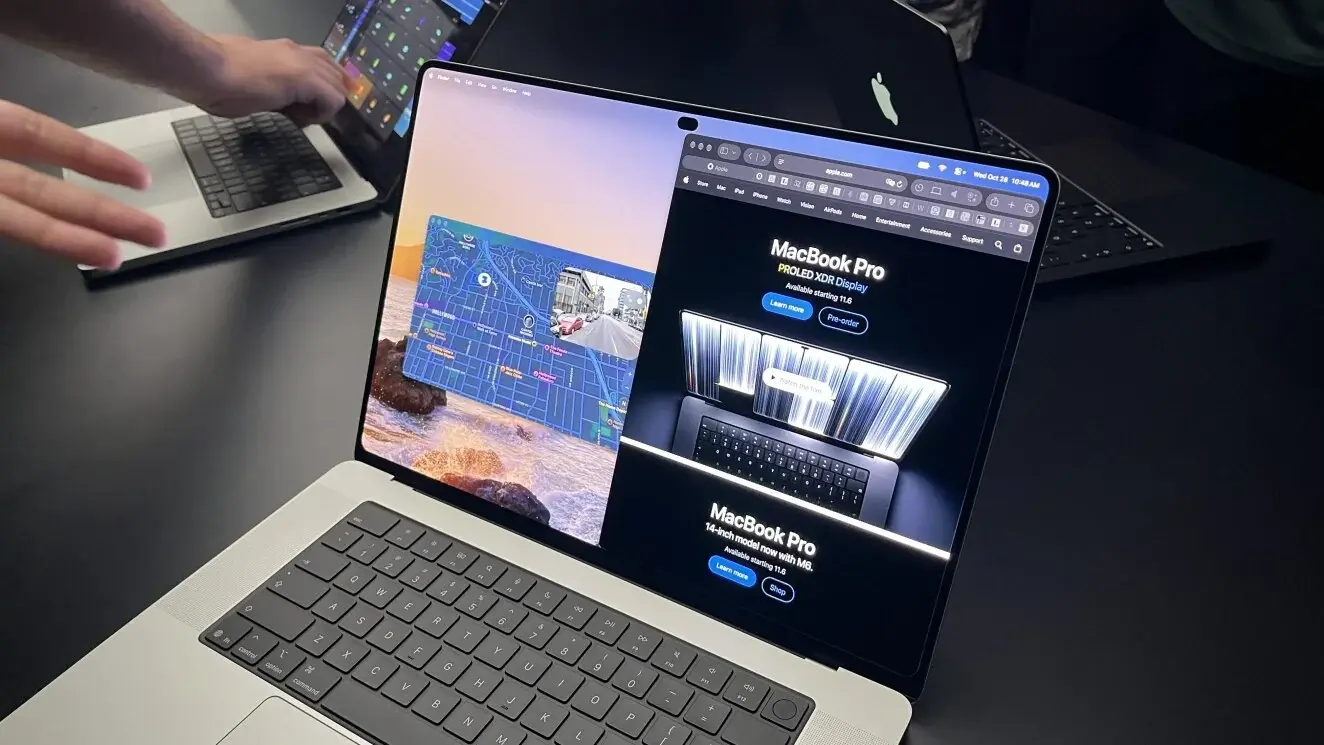
Steve Jobs famously said touch “doesn’t work” on a laptop and is “ergonomically terrible.” Yet at Apple’s Pro and Tell event, the company launched a touch-enabled MacBook Pro. PCMag hardware expert Joe Osborne found the touch screen responsive and smooth during his hands-on time, which makes me optimistic that Apple has finally cracked the vertical touch screen.
I’ve used touch-screen Windows laptops for more than a decade, so I know firsthand which touch features actually matter and which are gimmicks. These are the things I can’t wait to try on a touch-friendly version of macOS. None of them are novel or complex, but they make everyday computing feel far more natural.


1. Sign Documents With My Finger
I frequently use my Windows laptop’s touch screen to sign PDFs and other documents. Placing my finger on the screen and simply drawing my signature is much faster than painstakingly doing so via the touchpad. The Preview app on a Mac is already excellent for filling out and signing documents, and I expect a touch screen to significantly expand its usefulness.
2. Scribble, Sketch, and Mark Up Anything
Similarly, I would much rather draw on my MacBook’s screen to annotate documents, create sketches, compose notes, and put together whiteboards than use my mouse. I often feel tempted to scribble notes on a phone or tablet and then copy notes back to my Mac, just because it’s currently so inconvenient to do so directly on my laptop.

Apple’s First OLED Touchscreen MacBook Pro Changes Everything | Lab Report
Unfortunately, the new MacBook Pro with PROLED XDR Display doesn’t support the Apple Pencil, so your inputs won’t be pressure-sensitive. The screen obviously also doesn’t lie completely flat, so I doubt it will be optimal for long drawing sessions. Apple’s iPad remains the better platform for professional digital art creation by far.

Apple demonstrated drawing directly on a MacBook’s screen, just like on an iPad (Credit: Joe Osborne)
I frequently use my finger to scroll through documents and web pages on my Windows laptop’s touch screen. This ability is particularly useful when I’m using my laptop in awkward or cramped situations, such as on airplanes, where the touchpad is pressed close to my body.
4. Pinch to Zoom, Like I Already Do on My Phone
The ability to pinch-to-zoom is excellent for working with large images, documents, and maps. Simply touching a point on the laptop’s screen and then pinching or expanding to zoom in or out is much more intuitive and fluid than doing so on a trackpad. I can’t imagine using either my phone or Windows laptop without this feature, so I’m excited to see it come to a future MacBook.
5. Spin 3D Models and the Entire Globe
Apple says the touch-enabled display “[brings] pros a whole new way to interact with their content”, and shows off rotating 3D models with touch input in professional apps like Blender. But even average Mac users who don’t engage in professional 3D modeling could appreciate this feature when rotating the globe in Google Earth, for example. Touch gives you much finer control over these types of actions.
6. Finally Use iPhone and iPad Apps the Way They Were Built
Apple’s macOS already runs iPhone and iPad apps. But apps sometimes require alternative touch controls. For example, you might need to press and hold the Option key on your Mac’s keyboard and use the trackpad as a virtual touch screen. I avoid these on my Mac as much as I can because they are confusing and awkward. Actual touch controls will make this experience so much better. Apple also points out that developers can now test the touch experience in their apps directly on their MacBook’s screen during the creation process.
Recommended by Our Editors

A touch screen beats Apple’s alternative system for interacting with iOS apps on a Mac (Credit: Apple/PCMag)
7. Tap Into Apps and Games Designed for Touch
Developers often create modern macOS apps using Apple’s Catalyst or SwiftUI frameworks, which produce a single app that runs across iOS and macOS with similar interfaces. The iPad and Mac versions of some apps often look almost identical. With so many programs already designed for touch input, it’s only natural to let me actually touch and use them as the developer originally intended. With very little modification, I think that many existing Mac apps can work surprisingly well with touch. Apple also has a variety of Apple Arcade games that work on both macOS and iOS, and touch controls are a better fit for some of them.
8. Control My Mirrored iPhone by Touch
Apple’s iPhone Mirroring feature lets you see your iPhone screen and interact with it on your Mac’s desktop. Directly touching the screen is obviously more convenient than using a mouse and keyboard to operate my phone. I’ve been able to do this with a mirrored Android phone on a Windows 11 touch-screen laptop for a while now.
The One Thing I’m Dreading: Smudges
Despite all the conveniences of a touch screen, there’s no getting around the fact that it’s going to cause smudges. I already regularly wipe my laptop’s screen with a microfiber cloth, so I’ll likely need to do it even more often with a touch screen.
Don’t Expect Touch to Stay a Pro-Only Feature
Apple’s first touch-screen Mac is a pricey machine built for professionals, but the company’s announcement makes a point of pitching touch for everyday use, too, promising that “everyday tasks are simple and intuitive.” That’s a strong hint that touch won’t stay exclusive to the high end for long. Cheaper models might not get the same level of hardware engineering, but in principle, a touch screen makes just as much sense on a $699 MacBook Neo as on a $2,899 MacBook Pro. And if your arm ever feels like it’s about to fall off, the trackpad isn’t going anywhere.
About Our Expert

Chris Hoffman
Senior Writer, Software
Experience
I’ve been writing about technology for more than 15 years and using it in earnest for over twice as long. As a member of PCMag’s software team, I focus on Windows coverage, but also write about other key desktop operating systems and system apps. (I used Windows 3.1 upon its release and have followed every subsequent release closely).
Prior to joining PCMag, I wrote for How-To Geek starting in 2011, and my articles amassed over a billion page views. I went on to run the publication as editor-in-chief for four and a half years. I have also contributed to Computerworld, Fast Company, PCWorld, Reader’s Digest, The New York Times, and many other outlets about everything from AI to PC hardware to Windows. I founded and ran my own direct-to-reader Windows-focused newsletters, Windows Intelligence and The Windows ReadMe, working in partnership with Thurrott.com.
Leave a Reply