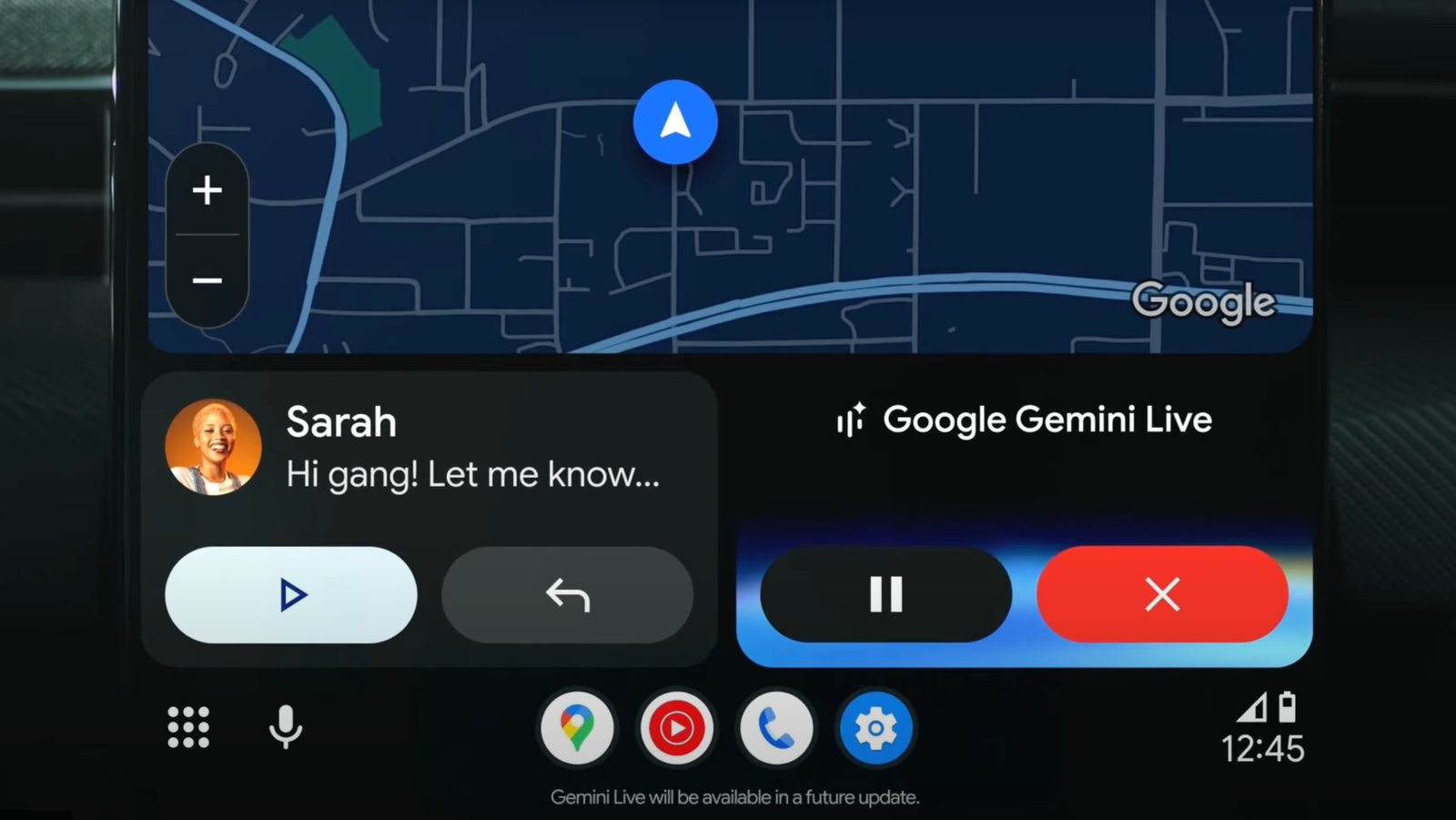
I’m primarily an iPhone and CarPlay user, but I do sometimes use my Android phone and Android Auto when I’m driving. Now that Google Assistant is going away, the ability to chat with Gemini AI has been a huge boon for Android users.
Google’s AI allows me to send emails and messages, ask for playlist suggestions, get information on local restaurants and businesses via Google Maps, set reminders, ask questions, play games, and listen to stories. To get started, you’ll need an Android phone and a car that supports Android Auto. With that settled, here’s how to set it up.
Set Up Gemini on Your Phone
First, set up Gemini as your AI assistant on your phone. If you haven’t already downloaded the Gemini app, grab it from Google Play. To enlist Gemini as your default assistant on most Android phones, go to Settings > Apps > Assistant > Digital assistants from Google. Tap Gemini, then Switch to confirm your action, and then tap Use Gemini. Once Google Assistant is fully removed from Android, you may no longer need to take this step.

(Credit: Google/PCMag)
The process is different on Samsung phones. Head to Settings > Apps and tap Choose default apps. Tap Digital Assistant app and make sure it says Google. To confirm that Gemini is the default on your Samsung phone, hold down the power button. A window should pop up telling you that Gemini is your new AI assistant from Google.

(Credit: Google/PCMag)
For easy access, make sure Gemini is activated for hands-free use in your car. Open the Gemini app, tap your profile icon, and select Settings > Talk to Gemini hands-free and then enable Hey Google. Tap the Turn on button, confirm your action, and then tap Done.

(Credit: Google/PCMag)
Connect Your Phone to the Car
Next, connect your Android phone to your car. You can do this through a wired USB cable or a wireless Bluetooth connection. After connecting your phone, go back to the Android Auto settings on your device and tap Connect a vehicle. If your phone is plugged in via USB, the connection is automatically established. If you’re going the wireless route, choose the option to connect using wireless Android Auto and then opt to connect using Bluetooth.

(Credit: Google/PCMag)
On your car’s multimedia screen, go to Settings, select Bluetooth and devices, tap the button to add another device, and then tap the button to search for devices. Select the name of your phone on your car’s screen after it pops up.

(Credit: Google/PCMag)
Back on your phone, tap the link for Pair a vehicle. A pairing code appears on your phone and the car screen. Confirm the code on both devices. On the car screen, tap Yes when asked if you want to use Android Auto. You should then see the Android Auto interface on your screen.

(Credit: Google/PCMag)
Ways to Use Gemini in Your Car
Are you actually on Gemini now? Since the AI chatbot is still rolling out as a voice assistant for Android Auto, there’s a chance you may still be stuck on Google Assistant. You can check in the car by asking “Hey Google. Are you using Gemini?” If the assistant doesn’t understand your request, then you’re still on the older version. If it declares that Gemini is in use, you’re now ready to chat. Here are a few ways I like to use Google’s AI to assist me when I’m driving.
1. Provide Details on Local Businesses
Whether I’m hungry for a meal or am trying to find a certain store or other business, Gemini can help. As one example, I’m able to ask Gemini to recommend restaurants of a specific cuisine and give me details about any of them. For this one, I asked the AI to recommend some nearby Italian restaurants. After a list of the choices popped up in Google Maps, I enquired further about one of them, asking for the ratings and reviews and the hours of operation. After Gemini supplied all the details, it then asked me if I want to go there. In the mood for Italian, I said Yes, and the directions guided me from there.

(Credit: Google/PCMag)
2. Play a Selection of Songs
Sometimes I feel like listening to songs of a certain theme. Here, I can ask Gemini to play a playlist of songs based on my request, and the AI will fire up YouTube Music to play them. In this case, I asked the AI to play a list of outer space songs similar to Elton John’s “Rocket Man” and David Bowie’s “Space Oddity.” In return, Gemini launched YouTube Music and started playing a collection that included “Mr. Spaceman” by the Byrds, “Supersonic Rocket Ship” by the Kinks, and “Calling Occupants Of Interplanetary Craft” by Klaatu.

(Credit: Google/PCMag)
3. Set a Reminder
Often an idea pops into my head that I need to remember. The best way to do that is to set a reminder, and Gemini can certainly help there. Just say: “Hey Google” and then describe the item for which you need a reminder. Forget to set a date and time, and the AI will ask you for it. Here, I told Gemini to set a reminder for 10 a.m. the next day to call the vet about my cat Mr. Giggles. The AI complied, and I got my reminder the following day.

(Credit: Google/PCMag)
4. Send a Text
If I need to contact someone while driving, I can ask Gemini to call or email the person. But sending a quick text is often easier. For this one, I told the AI to text someone to tell them that I had to cancel our dinner together for the following evening. In this case, I started by asking Gemini to text the person and giving it the subject of the message. After showing me the text on the screen, the AI then sent it. Quick and easy.
Recommended by Our Editors

(Credit: Google/PCMag)
5. Answer a General Question
As an AI, Gemini should be able to answer most questions I throw at it. And that’s been the case so far. In this example, I asked it to explain Einstein’s Special Theory of Relativity. Gemini’s description was succinct but detailed and easy to understand.

(Credit: Google/PCMag)
6. Answer a Specific Question
Gemini also comes in handy when I want an answer to a more specific question. For this one, I told it that I like science fiction books about time travel and asked it to recommend a few recent titles. Gemini named such recent books as The Third Rule of Time Travel by Philip Fracassi, Echoes of Times by Douglas E. Richards and Brandon Ellis, Hive by D.L. Orton, and The Ministry of Time by Kaliane Bradley.

(Credit: Google/PCMag)
7. Play a Game
I often like to play interactive games, especially when driving on a long car ride. And Gemini is a good gamemaster. I typically request different types of games, but my favorite is a trivia quiz. Here, I asked the AI to give me a quiz about US history. At first, the questions were too easy. But then I told Gemini to make them more difficult, and that’s where it got more challenging and more interesting.

(Credit: Google/PCMag)
8. Tell Me a Story
Another way I like to pass the time while driving is to listen to an imaginative story. And Gemini is a clever storyteller. For this one, I asked it to tell me a story about my cat, Mr. Giggles, traveling to the moon. Gemini spun a short but creative tale about how Mr. Giggles just leaped to the moon from a tree branch, using his fluffy tail like a rudder. He then spent the day on the moon batting at floating space dust and chasing his own shadow. Yep, that’s just what he would do.

(Credit: Google/PCMag)
9. Chat With Me
When I’m taking a long car trip by myself, I often just want someone (or something) to chat with. And for this, Gemini is an interesting and entertaining conversationalist. Here, I simply asked it to chat with me to pass the time. The AI cleverly tapped into the story about Mr. Giggles traveling to the moon to engage me in conversation, asking me where I would go if I went into space and what food I’d take with me. I told it I wanted to visit the closest Earth-like planet, and it zeroed in on Proxima Centauri b. From there, we talked about what food I’d bring (I opted for PB&J sandwiches). The chat was not only imaginative but engaging, a great way to pass the time during a long car ride.

(Credit: Google/PCMag)
About Our Expert

Lance Whitney
Contributor
Experience
I’ve been working for PCMag since early 2016 writing tutorials, how-to pieces, and other articles on consumer technology. Beyond PCMag, I’ve written news stories and tutorials for a variety of other websites and publications, including CNET, ZDNet, TechRepublic, Macworld, PC World, Time, US News & World Report, and AARP Magazine. I spent seven years writing breaking news for CNET as one of the site’s East Coast reporters. I’ve also written two books for Wiley & Sons—Windows 8: Five Minutes at a Time and Teach Yourself Visually LinkedIn.
I’ve used Windows, Office, and other Microsoft products for years so I’m well versed in that world. I also know the Mac quite well. I’m always working with iOS, iPadOS, watchOS, and Android on my various mobile devices. And these days, I write a lot about AI, so that’s become another key area for me.
My wife always jokes about all the tech products we have around the house, but I manage to put them to good use for my articles. I like Lenovo computers, so I own a couple of Lenovo desktops and several laptops. I have three MacBooks and a Mac mini. For my mobile life and work, I use an iPhone 16 Pro, iPad Pro, and iPad mini as well as an Apple Watch. But since I write about Android, I own several Android phones and tablets. Like any tech person, I have a cabinet full of cables, wires, and assorted mysterious gadgets. And when it’s time to take a break from writing, I have an old Xbox 360 and Nintendo Wii, both of which I use for exercise and fitness games.
Leave a Reply