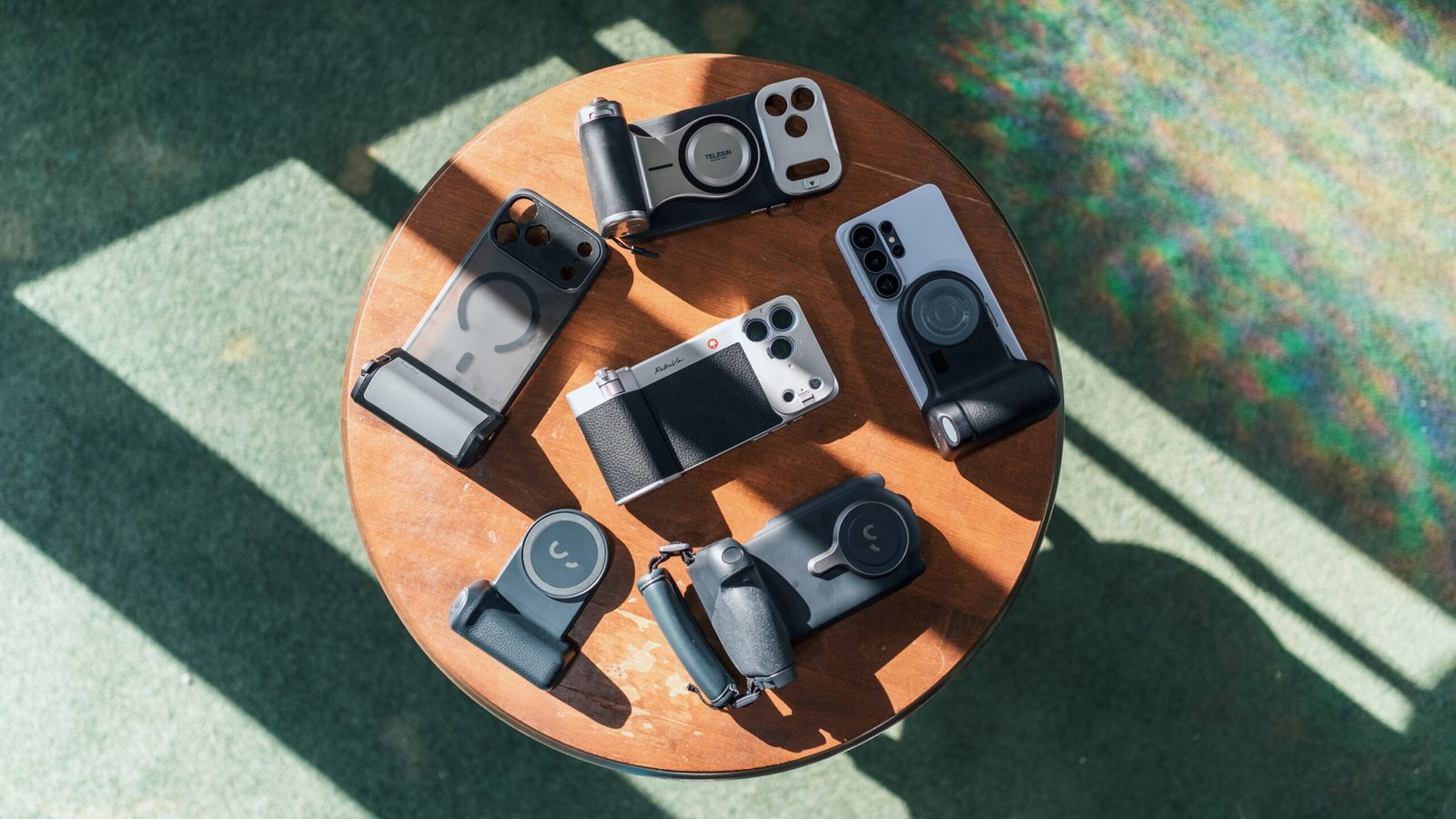
If you’re like the vast majority of people, you use a smartphone as your everyday camera. Whether it’s taking a snapshot of your kid or pet, catching candids during a night out with friends, or embracing your artistic side with landscape or abstract art photography, a flagship smartphone like the iPhone 18 Pro or the Samsung Galaxy S26 Ultra delivers results that will please snap shooters, photo enthusiasts, and pros alike.
But phones have a major Achilles’ heel. Designed as multitaskers, your phone doesn’t just take photos, but handles email and web browsing, runs apps, and slides right into your side pocket when you’re done. That’s where a dedicated photo grip can help. These accessories latch onto your phone and literally give you something more to hold onto, plus add the tactile controls to take a photo and, for some models, adjust exposure and zoom.
Shop the Top Smartphone Photo Grips


I tried a several of the more popular options on the market with the iPhone 18 Pro Max and the Samsung Galaxy S26 Ultra to see if they’re a worthwhile investment or just another accessory that will sit unused in your junk drawer.
How Do Smartphone Grips Work?
Photo grips for smartphones have been around for years; the first I remember seeing was the Pictar One, which is now close to a decade old. The Pictar required you to slide your phone into its cradle and used ultrasonic sound waves and a proprietary app to take photos. I reviewed the Pictar One Mark II in 2018 and was thoroughly unimpressed with the product. It felt cheap, and its app didn’t support the iPhone’s computational photography features. I liked the idea, but hated the execution.
Pictar is no longer around, but others have stepped in to take its place and improve upon the smartphone photo grip concept. Almost all of the grips today attach to a phone magnetically and use Bluetooth for communication. There are outliers, and I tried one that uses USB-C instead. I like the Bluetooth and magnets approach; it makes it easy to pop the grip on or off, though it comes with a downside—you’ve got to make sure that both your phone and the grip are charged.
Does a Smartphone Grip Require a Special App?
A Bluetooth connection means that you can pair the grip with your smartphone and use the native camera app—with some limitations. Your phone’s native camera app and most third-party apps like Adobe Project Indigo (available for iOS) natively recognize a grip’s shutter button. But if the grip has additional buttons or a control dial, you might need to use a third-party app; it depends on how the grip communicates with the smartphone.
I tested each grip with the iPhone 18 Pro Max and Samsung Galaxy S26 Ultra using the native camera app and, where required, the app made for the grip to suss out how each works with both iOS and Android.

Some grips, like the Telesin Master Grip shown here, require a special app to use all of their features. (Credit: Jim Fisher)
There’s some good and bad there. I’ll give you the bad news first—third-party apps don’t have the same imaging processing features as your phone’s default camera app. That means you’ll lose access to computational bokeh and night modes, built-in filters like Apple’s Photographic Styles engine, and you often have to forgo Raw and high-resolution modes. The silver lining is that grip apps often include their own set of stylized filters, and you don’t have to use the grip’s app if you just want shutter control.
Most of the grips I tested work with both Android and iOS; the Leica Lux Grip, Pgytech Retrova, and SmallRig FilMov are the exceptions — they only work with iPhones.
How About a Special Phone Case?
If you have an iPhone 12 or newer, or a Google Pixel 10 or newer, you can attach magnetic add-on grips directly to your phone without an additional case if you’d like, or in conjunction with any standard protective case. The Samsung Galaxy S26 series is another matter. It doesn’t have a built-in magnetic ring like Apple’s MagSafe in iPhones, so you’ll need to use a case that supports magnetic accessories for a secure fit.

Samsung Galaxy owners will need to add a case with a magnetic ring to use most grips. (Credit: Jim Fisher)
A couple of the iPhone grips I tested connect via USB-C instead of MagSafe. For those, a case is required, but included. You’ll need to make sure you buy the right version to fit your phone. Cases made for the iPhone 16 Pro and Pro Max won’t fit newer phones. Cases for the iPhone 17 Pro and 18 Pro are cross-compatible, as are those for the 17 Pro Max and 18 Pro Max.
Are Smartphone Photo Grips Any Good?
Generally speaking, yes, though I’ll go into specifics on the strengths, weaknesses, and value of each I tried below. A grip solves a real problem with using a smartphone for photos— ergonomics—by providing a tactile experience that’s closer to using a real camera. I especially like grips that have an exposure dial. I often adjust EV for backlit or other scenes that are tricky for a camera to meter. Phones let you do this manually, but I find both touch screen interfaces and the iPhone’s capacitive Camera Control bar difficult to manipulate. It’s too easy to overshoot an adjustment, and making fine changes requires a light touch and concentration. A dial is an ideal interface, but phones don’t have dials.
I also like the magnetic attachment that nearly every modern grip uses. It’s a lot easier to pop on or off versus early examples like the aforementioned Pictar, and the wireless Bluetooth connection is a plus. Some grips even include high-capacity batteries and will charge your phone, a boon if you have an older handset that gives you battery anxiety.
ShiftCam SnapGrip Pro: The Best Basic Grip
The ShiftCam SnapGrip Pro proves to be an excellent choice for creators who want a simple grip that works with the native camera app. It’s priced reasonably at $89 in your choice of black or white finish, includes a 5,000mAh battery that can give your phone some extra run time, and isn’t too heavy at about 6.5 ounces. It has two buttons, a shutter release that works with the native camera app and a function button that toggles its wireless charging function on and off, plus a USB-C port for charging. It does not have a tripod socket, however.

ShiftCam did a great job with the SnapGrip Pro’s shutter release. (Credit: Jim Fisher)
The SnapGrip pairs with your phone via Bluetooth and attaches magnetically. Plus, it includes a standard circle mount so you can attach another accessory, a plus if you want to use a powerful LED light like the ShiftCam Pocket Light 2.0 ($39.90) or a Xenon flash like the forthcoming Godox A2 ($84.90) along with your phone.

The ShiftCam SnapGrip Pro gets the basics right, works with iPhones and Android phones, and isn’t too heavy. (Credit: Jim Fisher)
The grip is comfortable to use. The handhold has a textured finish to improve grip and features a circular shutter button set at a slight angle on its top. I had no problems finding the shutter button by touch with my index finger. It also doubles as a desktop stand, good if you’re using your phone for self-recorded vlogs or video conferencing. The SnapGrip Pro isn’t the fanciest grip out there, but it’s enjoyable to use, works as a power bank, and is affordable to boot.
Pgytech RetroVa: Best for Exposure Control
If I were awarding points for style alone, the Pgytech RetroVa would be the runaway winner. It makes your phone look like a ’70s-era Leica, complete with a two-tone silver-and-black finish and a red dot take on Pgytech’s insignia. The $89.95 grip is available for the iPhone 16/17/18 Pro and Pro Max, and you need to make sure you get the right version because it requires a case and USB-C connection. The case and grip include eyelets that work with Pgytech loop strap connectors, and the kit ships with a wrist strap. The grip and case for the 18 Pro Max weigh a reasonable 4.1 ounces.

I like the RetroVa’s sloping handgrip, knurled exposure dial, and comfortable shutter release. (Credit: Jim Fisher)
It’s a shame that Android users can’t get the RetroVa, because it’s one of the better grips I’ve tried. Its angular grip allows me to obtain a strong purchase over the phone. I like that the EV control wheel is nested into the grip itself and knurled so it’s easy to find by touch. Up top, there’s a two-stage shutter release and function button. The bottom has a tripod socket, USB-C charging port, and a microSD card slot that works with the Pgytech camera app. The microSD slot is a nice addition. While it’s not possible to use it with the Apple Camera app, it mounts as a disk in the iOS Files app, just like if you plugged an SSD into your phone’s USB-C port.
The USB-C connection isn’t quite as convenient as MagSafe, but the RetroVa slides on and off the included case smoothly, and includes a lock switch so it’s not in danger of falling apart unexpectedly. All in all, I’m impressed with the engineering on the hardware side.

The Pgytech RetroVa is stylish and functional, but only works with iPhones. (Credit: Jim Fisher)
The RetroVa supports partial functionality with the iPhone’s native camera app. Its shutter button and zoom rocker work seamlessly. The exposure dial requires a little effort on your part, but as long as you remember to half-press the shutter or tap the phone’s screen to bring up the exposure icon, it works to brighten or darken your shot. If the exposure icon isn’t visible, the dial changes between capture modes. Finally, there’s a Power/M button that quickly switches between the main Photo and Video modes.
Pgytech also makes an eponymous iOS app that is free to use with limited features. There’s an in-app purchase to unlock additional features, but there’s no charge for a lifetime buy-in if you have the grip paired with the app. Regardless, the app has some nice features. The exposure dial just works, no extra taps required, and you can configure the Power/M button to switch between different rear lenses, to swap between the rear and selfie lenses, or to change modes.

The Pgytech app has plenty of features, plus the grip works well with the native iPhone Camera app. (Credit: Pgytech/PCMag)
It’s a capable app for taking photos, too. It supports JPG, HEIF, or ProRaw at 12MP or 48MP with the iPhone 18 Pro Max I tested it with, plus includes more than two dozen film-inspired filters, along with manual control over the shutter, white balance, and ISO. There are some beauty filters as well, if you’re into that sort of thing, and it supports Live Photos and time lapses. You’ll still need to use the Apple app for Portrait and Night Mode, but the Pygtech app has some useful features of its own, including the option to stack multiple shots to create long exposure scenes (Slow Shutter), and the option to use Apple Log color for HEVC video and internal ProRes and ProRes LT recording without the need to partition off storage. The app also supports ProRes Raw, but since that file format is so big, it requires an external SSD, just as it does with Apple’s Final Cut Camera app.
I have one gripe about the RetroVa—sometimes I had to power-cycle the grip (a long press of the Power/M button) to get the iPhone Camera app to recognize it, and at other times I had to force-quit the Pgytech app and relaunch for it to recognize the grip.
Telesin Master Grip: Best for Ergonomics
The Telesin Master Grip is a magnetic-attaching grip with a great feel and control layout, but so-so software support. First, the good—the Master Grip comes in at a reasonable $89.99 price, sports a stylish two-tone silver-and-black finish, and has a 3,200mAh battery to charge your phone. It has its own magnetic attachment point on the front so you can add a light, either the Telesin Aura Zoom or one from another brand like the forthcoming Godox A2 xenon smartphone flash. The grip weighs about 6.5 ounces and is shaped so it doubles as a desktop stand for vlogging or video conferencing.

The Master Grip is comfortable to hold and quite sturdy. (Credit: Jim Fisher)
I also like the controls. It puts a control dial right in the front of the grip, just like you’d see in a mirrorless camera or SLR, and up top it has a shutter release collared by a zoom rocker, a wake/power button, and an Fn button. The buttons are configurable via its companion app, called ReefColor, a free download on the Apple App Store and Google Play. Just one note: Like the SmallRig FilMov, you need to enable the Zoom Accessibility feature on the iPhone for the zoom rocker and dial to work. Android owners don’t have to go through that step.

The Telesin Master Grip is among the best pieces of hardware I tested. (Credit: Jim Fisher)
The Master Grip sort of works with the native iOS and Android camera apps. Its shutter button works as expected: Half-press it to lock focus and fully press to take a picture. And the zoom rocker works in the native apps, too. On the iPhone, it smoothly zooms the camera, while on Android, the movement is a little jumpy, more staccato than smooth. The exposure dial doesn’t work in either native camera app; all it does is change between capture modes. The Fn button enables focus tracking on the iPhone, and switches to the selfie camera on Android. That’s a shame, especially when you remember that SmallRig FilMov has a similar button layout that works great in the iPhone’s first-party camera app.

Telesin’s ReefColor app omits some useful features that are included in first-party camera apps. (Credit: Telesin/PCMag)
So you’ll want to use the ReefColor app if you want the buttons and dials to work as expected. It’s a decent enough piece of software that lets you customize some of the button and dial functions, supports Raw and HEIF file formats, plus has an array of filters, including a clean, modern option as well as vintage looks inspired by film cameras and even a few antique digitals. I’ll also note that the zoom is jumpy on Android, even when using ReefColor. I like some of ReefColor’s filters, but they don’t live up to the standard that Apple has set with its groovy Styles filters, nor do they offer the computational portrait and night modes that let smartphones punch above their weight when it comes to imaging.
That’s enough of a drawback to make me hesitate to recommend the Master Grip. Hopefully, Telesin can make some tweaks to the firmware to better integrate with the first-party camera apps. As it stands, the Master Grip is quality hardware backed by so-so software.
SmallRig FilMov: Best Advanced Grip With Phone Charging
The SmallRig FilMov is a $119.99 add-on grip and case bundle with excellent controls and a middle-of-the-road asking price. Unlike most other grips, it attaches to your iPhone via a USB-C port, not magnetically, and provides power from its 3,400mAh battery to keep your phone charged during use. The FilMov has a nice outward-angled design and rear thumb rest that make your phone feel more like a camera, plus a top-mounted shutter release, zoom rocker, and exposure dial. I tested the version for the iPhone 18 Pro Max. Together, the grip and case weigh 6.9 ounces.

The FilMov includes a zoom rocker and exposure dial that work in the native iOS camera app. (Credit: Jim Fisher)
Its design makes it phone-specific, however. At press time, SmallRig makes two sizes of the FillMov. One works with iPhone 17 Pro and 18 Pro handsets, and the other fits the larger Pro Max versions. You’ll need to use a case to ensure a secure fit. SmallRig includes one in the box, and it also works with the Apple TechWoven case that I favor. Without a case, the USB-C connection is noticeably wobbly. The fit is snug with both cases I tried, maybe a little bit too snug. I had to apply a little more force than I expected to take the FilMov off the phone, but it’s well short of a Herculean effort to attach or detach the grip.
The USB-C connection is used to charge the phone only, so you’ll still need to connect the FilMov to your phone via Bluetooth to use its camera controls. The shutter button works as expected without any additional setup, but if you want to use the zoom rocker or exposure dial, you’ll need to change a setting on your iPhone. Go to Settings > Accessibility > Zoom and turn on the function, the first icon. This will immediately magnify your phone’s screen. Double-tap with three fingers to return to a standard view.

The SmallRig FilMov connects via USB-C and requires a case (included) for a secure fit. (Credit: Jim Fisher)
Once you’re through with that, you can use the FilMov’s zoom rocker to smoothly adjust the zoom setting in the Camera app, matching the experience of a pocket digital camera. This also enables the exposure dial. Turning it by itself switches between capture modes, but it also works as an EV control wheel. You just need to press the button next to it first; this will bring up the on-screen focus box and EV slider (the yellow box with a sun icon to its right). Once that appears, you can turn the dial right to brighten your scene or to the left to darken the exposure.
The FilMov wins points for its controls, but loses some for its design. It’s just a bit too frustrating to attach or remove when compared with magnetic alternatives. It’s also a nonstarter if you use an older iPhone or an Android handset.
Leica Lux Grip: Best for Fashionistas
If you don’t mind spending some money, the Leica Lux Grip is worth its luxury-grade $395 asking price. It looks classy, and it’s made from anodized aluminum, a change of pace versus the composite plastics that are typical of the category. It includes a standard tripod socket positioned at the bottom next to the USB-C charging port. Leica estimates that you can get about 1,000 photos between charges. It’s available in a black or silver finish; either color weighs just 4.6 ounces, and the grip sports IP54 dust and splash protection. It attaches to iPhones magnetically and has a front magnet so you can stack an accessory flash or light on top of it.

The Lux Grip includes a shutter release, exposure dial, and two function buttons. (Credit: Jim Fisher)
The Lux’s shape is unique among its peers. The grip is cylindrical, and includes a shutter button that works with the iPhone camera app, along with two configurable function buttons and a control wheel—you’ll need to download the Leica Lux app to use those. As you’d expect, the Lux is built to high standards. The buttons and dials feel built to last, and the aluminum exterior and cylindrical design are pleasing to use.
I’m disappointed by one aspect, though—it’s too small. The Lux Grip isn’t long enough to extend to the bottom of a big phone like the iPhone 18 Pro Max, and barely reaches the edge of the smaller iPhone 13 in landscape orientation. That leaves me resting my thumb against the bottom lip of the phone, so it’s just not as comfortable to hold as grips that extend past the case. On the plus side, the Lux Grip works well for vertical photos and doubles as a desktop stand, which is nice if you’re using your phone to record content for social media or for video conferencing.

Leica uses premium materials for the Lux Grip (Credit: Jim Fisher)
The Lux Grip is for iPhones and iPhones only, which is an odd choice when you remember that Leica makes the Android-powered Leitzphone. It works with the Lux app, a freemium service. You won’t have to pay for its basic features, including a set of Leica color profiles, simulated bokeh effects, and support for the control wheel and function buttons.
The app supports two capture modes, Program and Aperture. Program supports EV adjustment and uses the iPhone’s standard step zoom focal lengths (0.5x, 1x, 2x, 4x, and 8x). Aperture simulates the look and bokeh of several Leica lenses. It doesn’t actually control the physical aperture on the iPhone 18 Pro, though; bokeh effects are all done computationally. I’m a little lukewarm on this approach—the simulated effects can’t be edited after the fact like the iPhone’s portrait mode allows, and it restricts you to using 12MP HEIF capture. The Program mode lets you use ProRaw at up to 48MP if you’d like.

The Lux iPhone app simulates the look of various Leica lenses and includes filtered looks based on the styles of famous photographers. (Credit: Leica/PCMag)
The free tier includes one simulated lens (the 28mm Summilux-M) and five color profiles, plus all of the app’s baseline features (grid overlays, levels, file format selection, and so on). The premium tier ($6.99 monthly, $69.99 annually) adds more simulated lenses (at focal lengths from 26mm through 135mm), and nearly two dozen color modes, including stylized looks like Leica Teal and signature artist effects based on the work of photojournalists Steve McCurry and Greg Williams. The profiles let you adjust their intensity, grain, and halation effects independently, and black-and-white finishes also let you add a simulated color-balancing filter to change the brightness of different hues.
As much as I like the Lux app’s selection of color profiles, it paywalls the best ones, and while the grip itself features upmarket, lush design and construction, I wish it paired well with big-screen phones like the iPhone 18 Pro Max. Given the price, I’m also disappointed that Leica couldn’t get the control wheel working for EV in the Apple Camera app. Leica aficionados should give it a look, but I think most creators will be turned off by the asking price and will find it hard to justify paying extra for the premium app features.
Belkin Stage PowerGrip: Best for Extending Battery Life
Belkin has been in the accessory business for as long as I can remember, and its diverse product line includes the Stage PowerGrip, a $79.99 photo grip that comes in your choice of black, blue, or sand beige. It only has a shutter release button, so it just works with your camera’s built-in app.

The Stage PowerGrip works as a desktop stand. (Credit: Jim Fisher)
It does double duty as a power bank with 9,300mAH capacity and both male and female USB-C ports to charge other devices or juice up the grip itself. A front LED information panel shows battery life as a percentage and displays a green charging icon if the PowerGrip is actively charging an external device. And while it attaches to your phone magnetically, it doesn’t allow you to stack another magnetic accessory (like a ring light or flash) on top of it, as some other grips allow.
The downside? It’s heavy. The PowerGrip weighs 9.6 ounces, which is more than most phones. It’s a real chunky boi. The weight makes it a little uncomfortable to hold for longer photo sessions. Many dedicated cameras include a sculpted middle finger rest as part of the grip, a design choice that provides a more secure hold for heavier cameras.

The Stage PowerGrip on the iPhone 18 Pro Max (Credit: Jim Fisher)
I also don’t like the shutter button. It’s a little too narrow and sits at an angle on a small lip between the top and front of the grip. The combination makes it uncomfortable to use—I like the angled design, but the button itself isn’t big enough for me.

I’m not a fan of the Stage PowerGrip’s small, skinny shutter release. (Credit: Jim Fisher)
The PowerGrip is a good choice if you have an older phone that won’t get you through a day without a recharge, but its weight and so-so ergonomics make it a tough sell overall.
ShiftCam ProGrip: Best for Phones Without MagSafe
ShiftCam’s upmarket ProGrip is a behemoth among its peers. It’s unapologetically big, to the point where it includes a soft hand strap for extra support and a zippered carrying case for storage. Despite its size, the ProGrip only includes a shutter button for camera control, so it works with the native camera app. It includes a 6,400mAh battery that can charge your phone, and has standard 1/4-inch-20 tripod threads on the bottom and top of the grip, so you can secure it to a tripod and add an accessory to the top. The grip includes a removable cold accessory shoe too; it threads into the top tripod socket.

The ProGrip has a tripod socket on the bottom and and an accessory thread on the top. (Credit: Jim Fisher)
I like some aspects of the ProGrip. The soft hand strap is removable, and taking it off makes the grip feel less bulky without sacrificing too much in the way of comfort, plus makes it possible to use the ProGrip as a tabletop stand for vlogging and video conferencing. Likewise, having an accessory thread on top to attach a light or microphone is handy.
I also like the grip itself. It has a sculpted middle-finger indentation, plus the shutter release is great—it’s easy to find by touch. It’s positioned at the front of the grip and set at a slight angle so it doesn’t take any finger acrobatics to use. I’m also a fan of its ratcheting rotation mechanism, which lets you quickly switch between landscape and portrait shots without changing the way you hold the grip. It also has set stops at intermediate angles in case you want to experiment with the disorienting effects created by skewed Dutch angles.

The ShiftCam Pro grip is huge. (Credit: Jim Fisher)
But there are some real downsides, including a relatively steep $149.95 asking price, a hefty 10.8-ounce frame, and a design that clamps onto the sides of your phone rather than attaching magnetically. The clamps block the Camera Control button that’s on recent iPhones, and make it a little more of a chore to attach the grip to a phone versus magnetic alternatives. The front of the ProGrip doesn’t support additional magnetic accessories, either, which feels like an oversight since that feature is included in ShiftCam’s more affordable SnapGrip Pro.
And the Winners Are…
After trying some of the most popular photo grips on the market, I’d say the ShiftCam SnapGrip is the best choice for most creators. It’s affordable, works with your phone’s built-in camera app (and others from third parties, too), and stacks with another magnetic accessory. Plus, it includes a spacious battery that can extend your phone’s longevity, and is compatible with both Android and iPhone handsets. I also like that it’s affordable and not too heavy. On the downside, it only has a shutter button, so it doesn’t add as much tactile creative control as others.
The Shiftcam SnapGrip Pro is a standout value for Android and iOS. (Credit: Jim Fisher)
If you’re looking for a grip that has more than just a shutter button, the Pgytech RetroVa is the clear choice for iPhone owners. It’s affordable, stylish, and fully functional. I also like that it works well with the native iOS Camera app, plus it’s backed by a well-designed companion app from Pgytech. I ran into occasional issues getting it to pair, but a quick power cycle or a force quit of the Pgytech app solved it. The SmallRig FilMov comes in a close second, but loses points because it’s not as easy to slip on or off the phone, and it’s priced $30 higher than the RetroVa. It’s also an iPhone exclusive.

The Pgytech RetroVa stands out in a crowded field because of its excellent control and compatibility with the iPhone Camera app, but it doesn’t fit Android phones. (Credit: Jim Fisher)
Android owners who want a grip with more than just a shutter button are left in the lurch. The Telesin Master Grip is the best option, but its choppy zoom response and mediocre app are enough for me to give it a guarded endorsement.
What Else Is Out There?
Grips aren’t your only option for upgrading your phone’s ergonomics and functionality for creative work. If you’re more into video, a cage—a frame that sits around your phone and has mount points for handgrips, video lights, and microphones—is probably more up your alley. I’m hoping to test some of the more popular options from brands like Moment and SmallRig in the near future. And if you want super smooth results when recording handheld, getting a gimbal is a good idea. And add-on lenses can be useful for both photography and video and can up your vlogging game. There are numerous options out there, ranging from fisheye to anamorphic to extreme telephoto, and I plan on testing some of those soon.
About Our Expert

Jim Fisher
Principal Writer, Cameras
Experience
Images, and the devices that capture them, are my focus. I’ve covered cameras at PCMag for the past 15 years, which has given me a front row seat for the changeover from DSLRs to mirrorless cameras, the smartphone camera revolution, and the emergence of drones for aerial imaging. I have extensive experience with every major mirrorless and SLR system, and am also comfortable using point-and-shoot and action cameras. As a Part 107 Certified drone pilot, I’m licensed to fly unmanned aircraft systems (UAS) for commercial and editorial purposes, and am knowledgeable about federal rules and regulations regarding drones.
Leave a Reply